
First connection to CPLinQ PRO HTB application
This Article Applies From:
CPLinq Pro |

Introduction
This article is a guide for the very first connection to the application on a tablette before staring to complete tightening jobs.
Pre-requisites
To be able to start, you will need a mobile device with CPlinQ PRO installed, a wifi connection, and a tool such as the CP86 or CP8609, and of course an account created by you Unit Manager.
Connecting To CPlinQ Pro HTB
Allow CPLinQ for HTB to find, connect to, and determine the relative position of nearby devices.
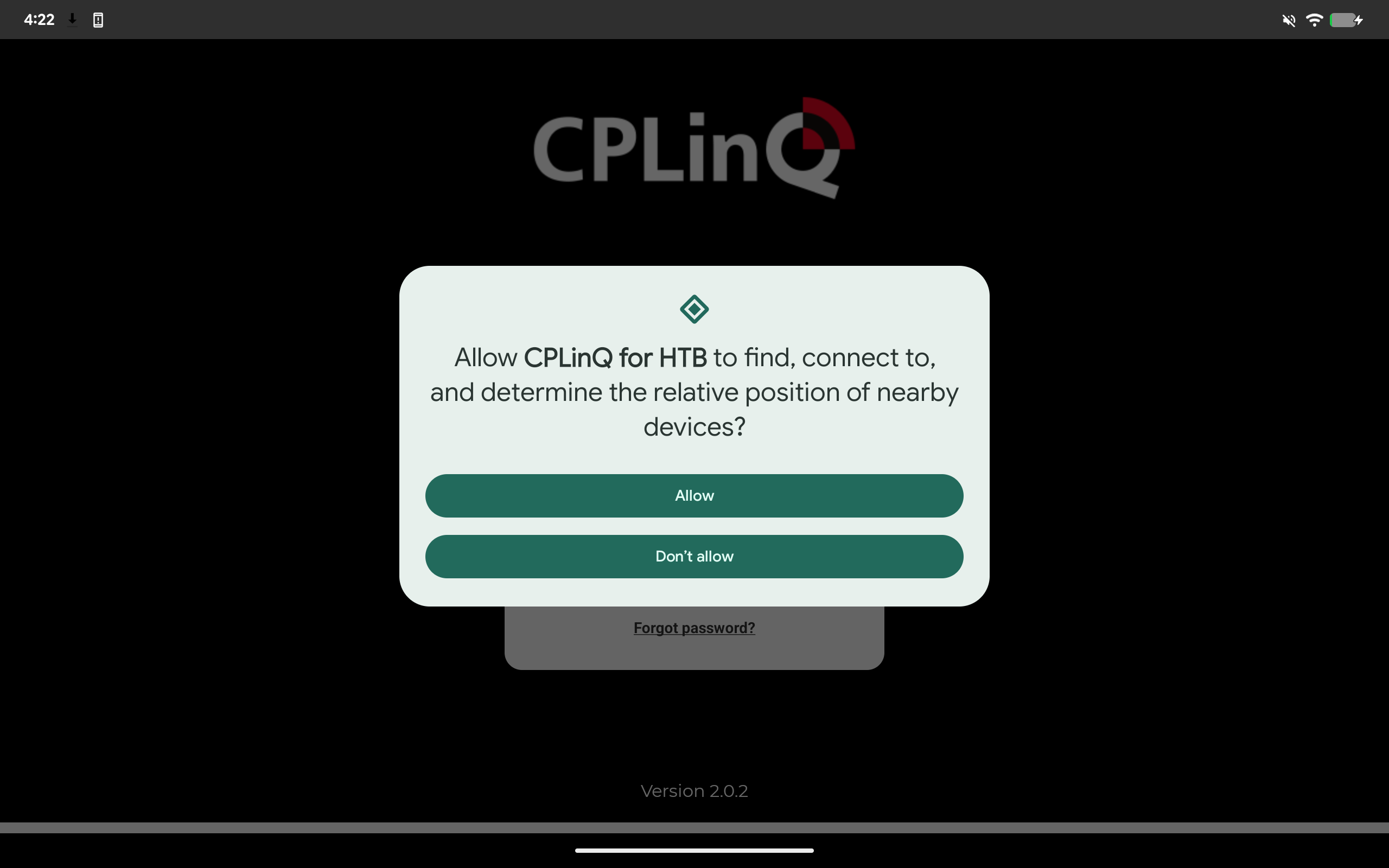
To connect to the interface :
Organization/username
*Please note that the organization is not case sensitive.
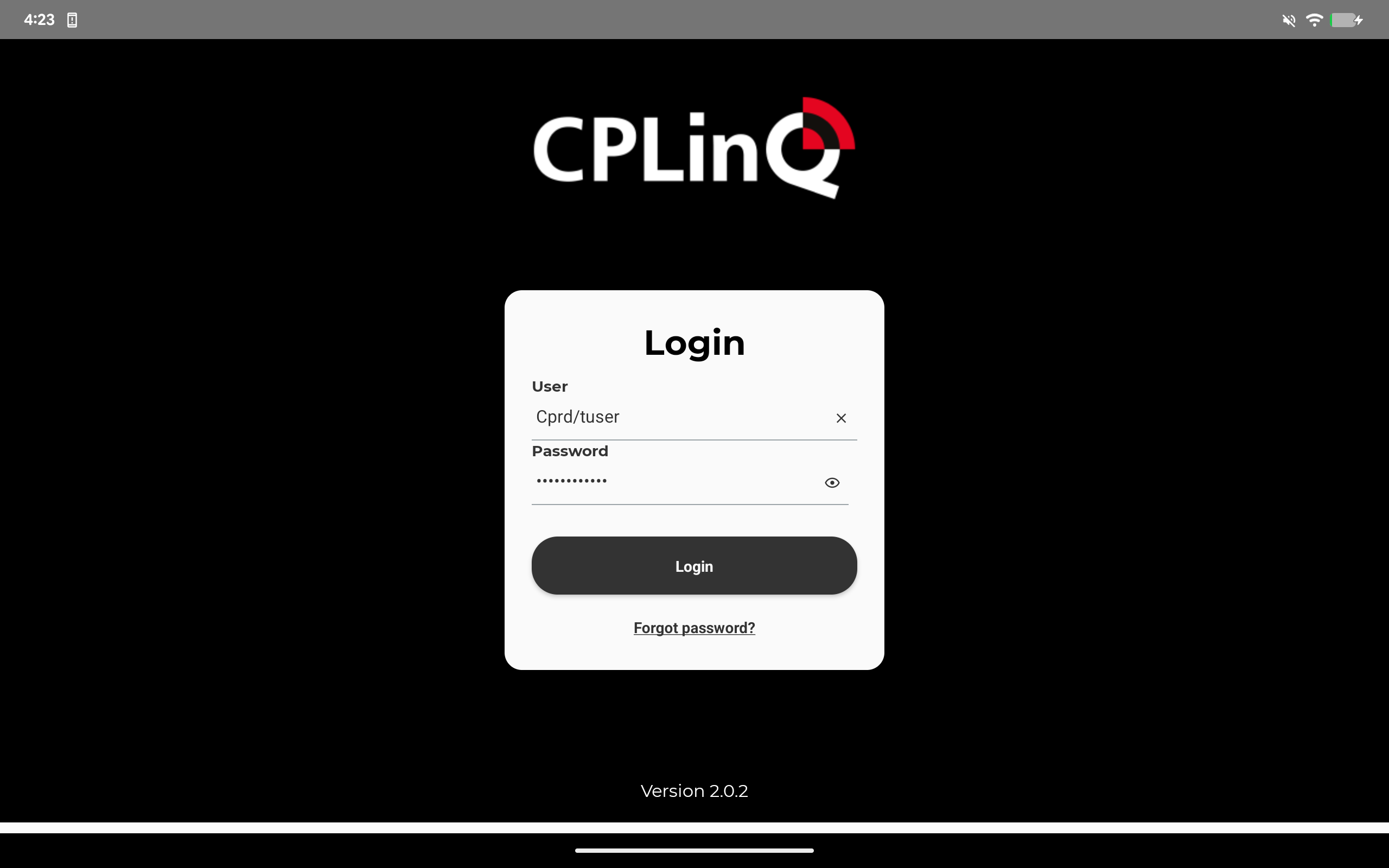
Enter your Password and sign in.
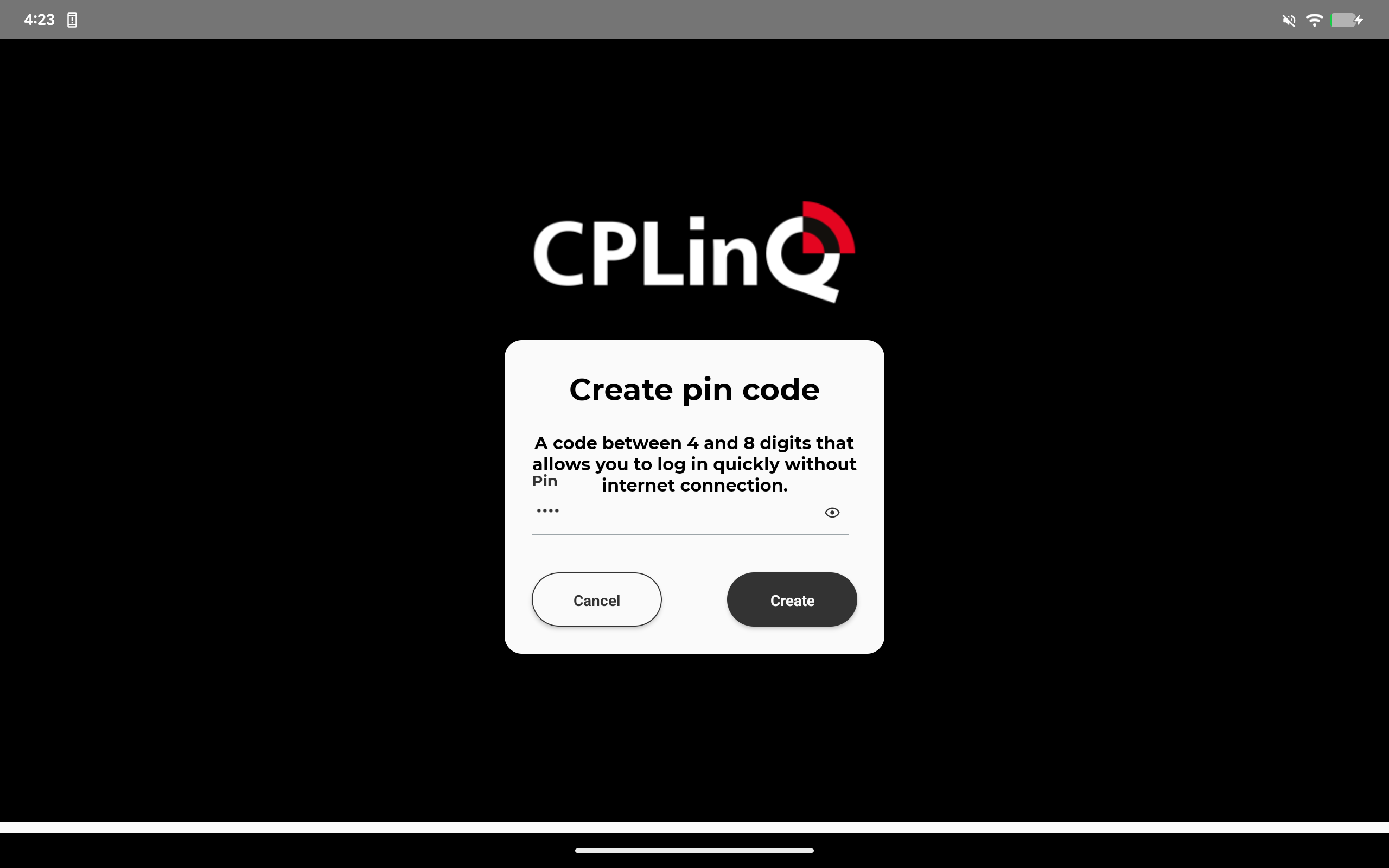
Create a pin code
This Pin code will be your main use of connection. Choose between a 4 to 8 digit code.
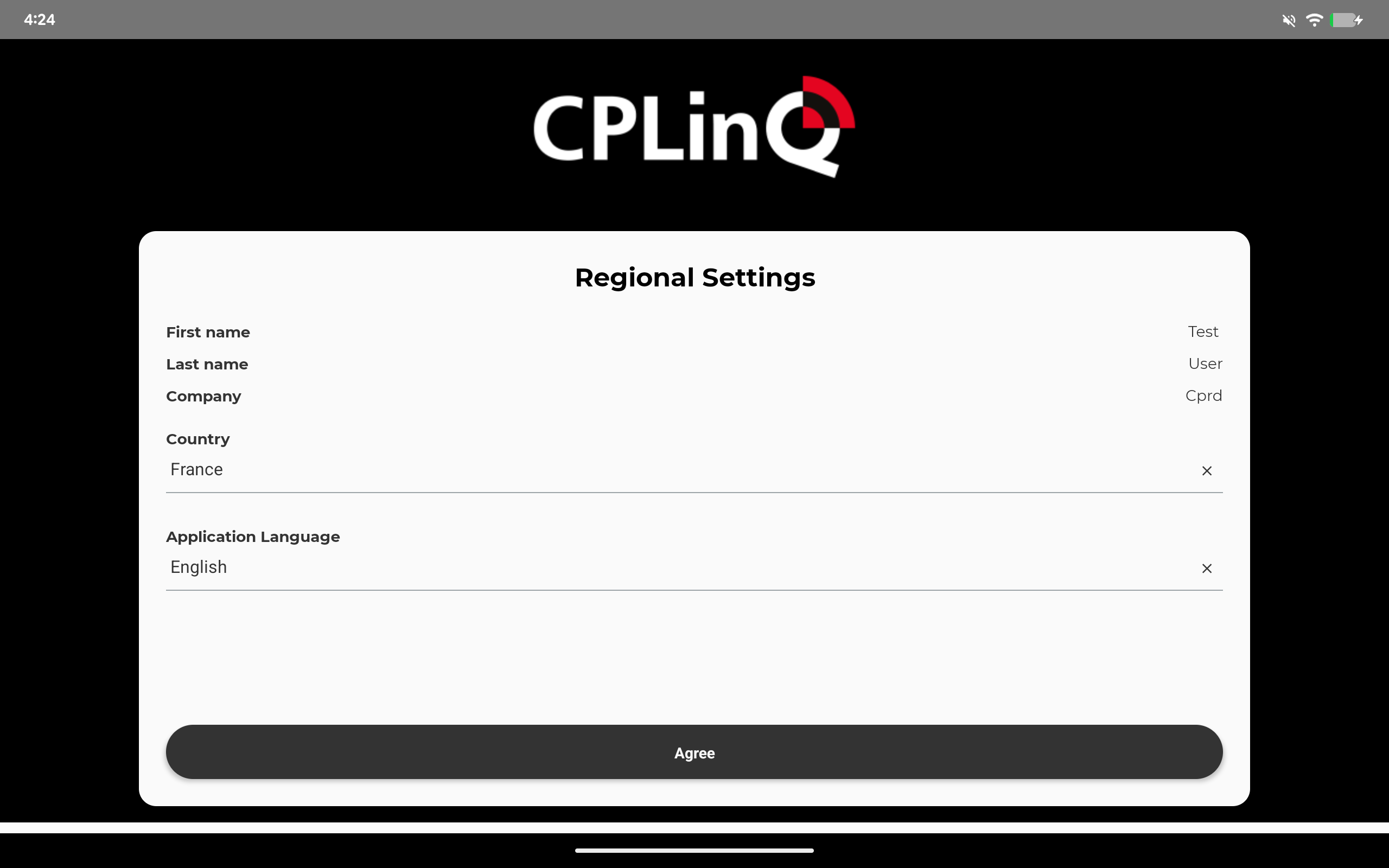
Select your country and main language
You can select between
English
French
Italian
Deutsch
Espagnol
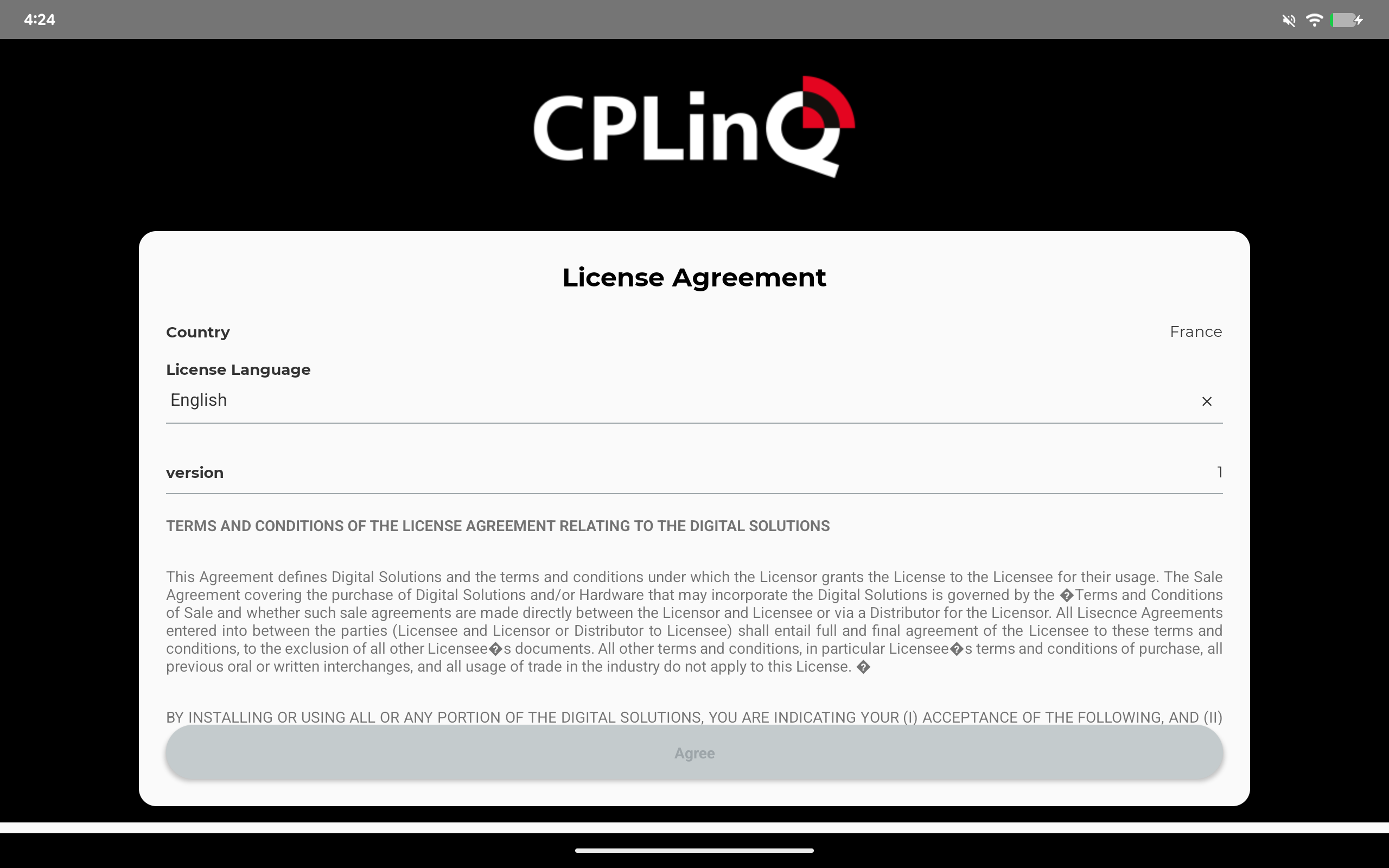
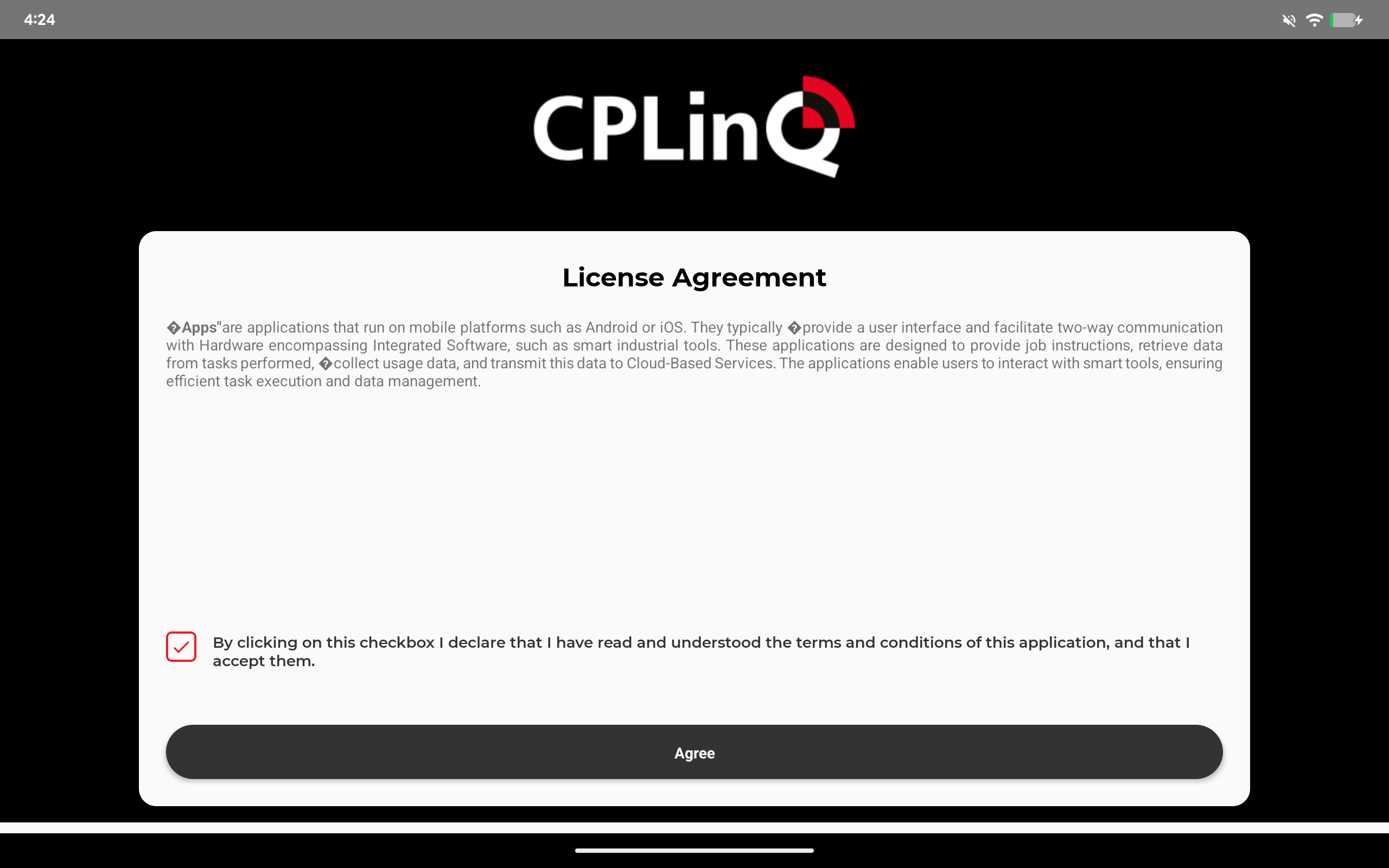
Agree to the terms of the license Agreement.
Note that the agree button will not be activate unless you have scrolled down to the bottom, we suggest that you read all the information.
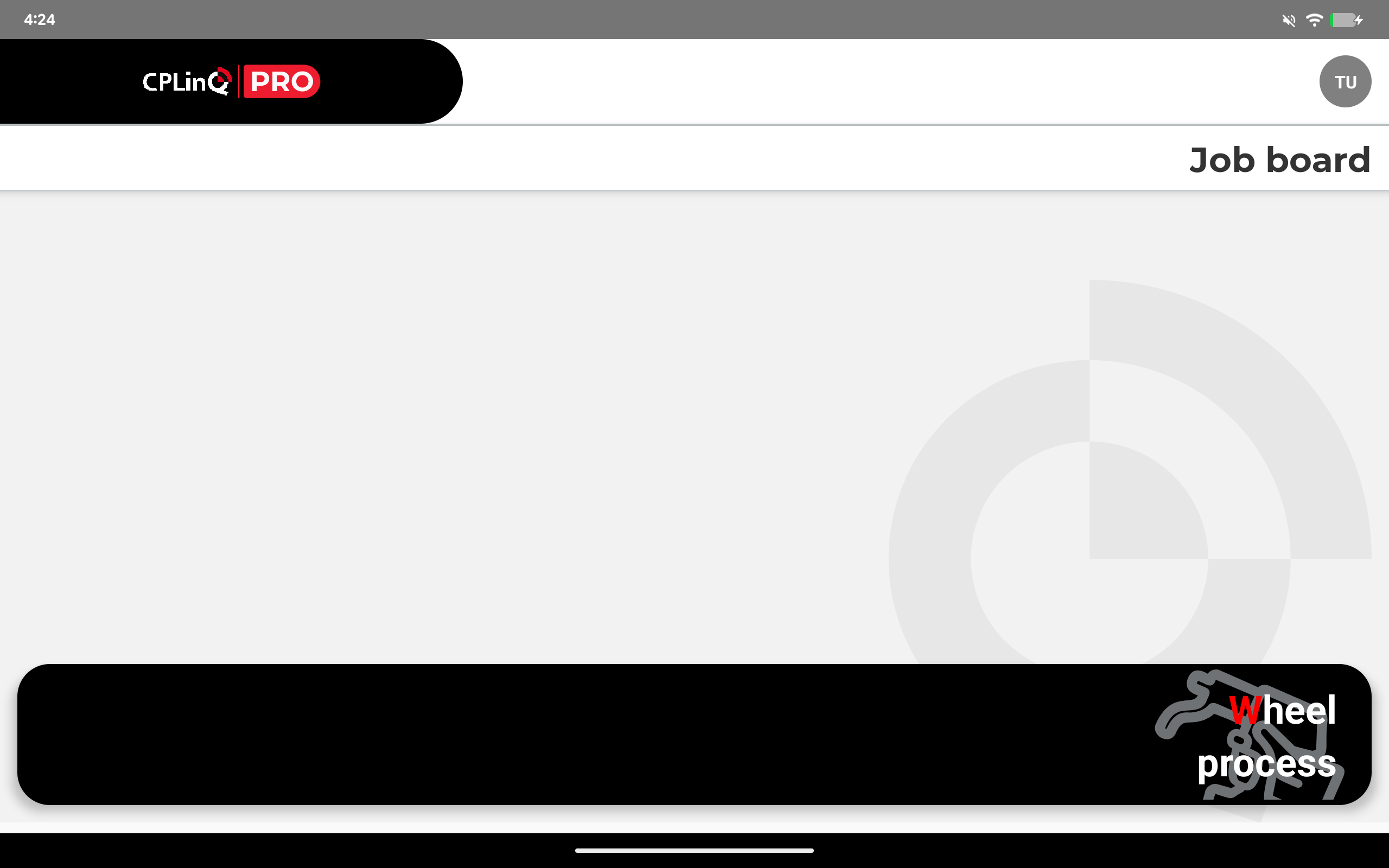
You now have access to the software and your workshop.
Further readings
To Connect to the tool : Connecting to the tool
To start a maintenance job : Start a Maintenance job