
Connecting to the tool
This Article Applies From:
CPLinq Pro |

Introduction
This article is a guide to connect the tool to the application CPLinQ Pro HTB
Pre-requisites
To be able to start, you will need a mobile device with CPlinQ PRO installed with a bluetooth connection, a wifi connection, and a tool such as the CP86 or CP8609, and of course an account created by you Unit Manager.
Connecting To to the tool
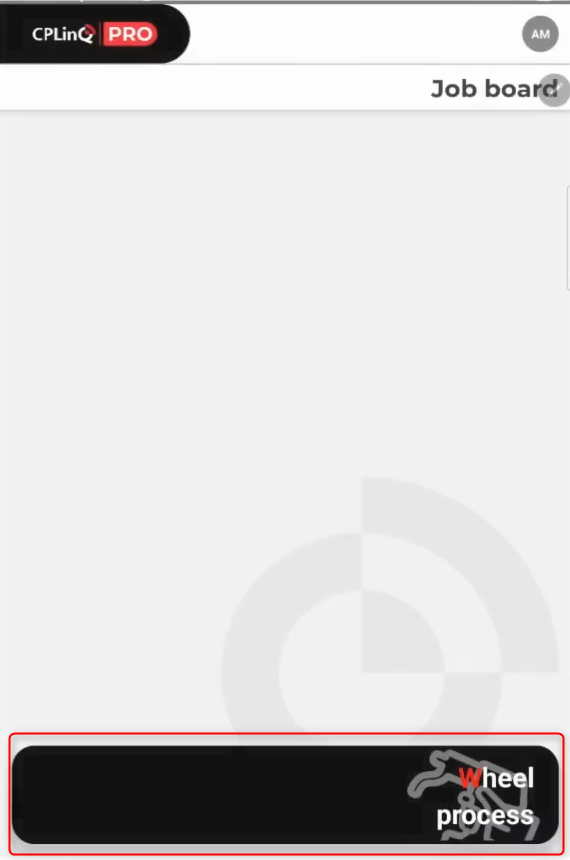
Select "Wheel Process" on the bottom of the screen
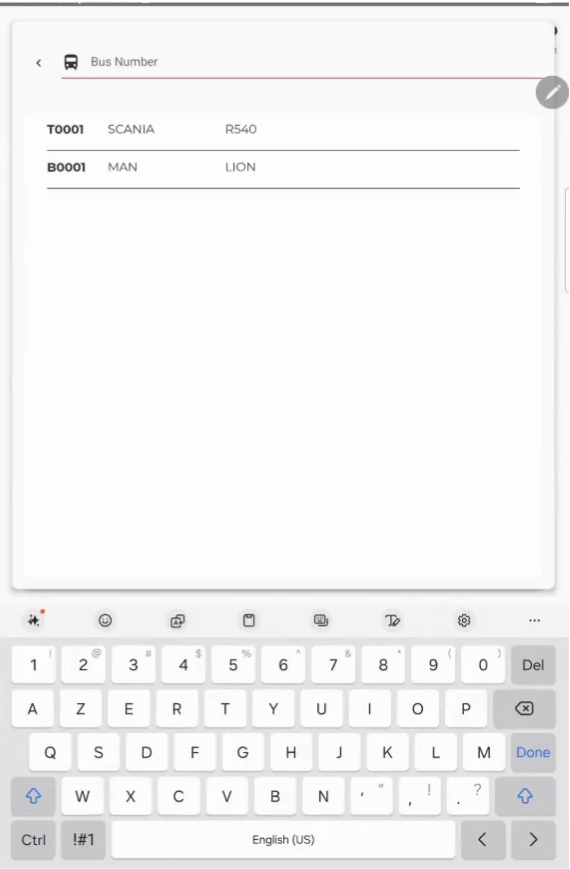
Enter or select the bus that you will be doing maintenance on :
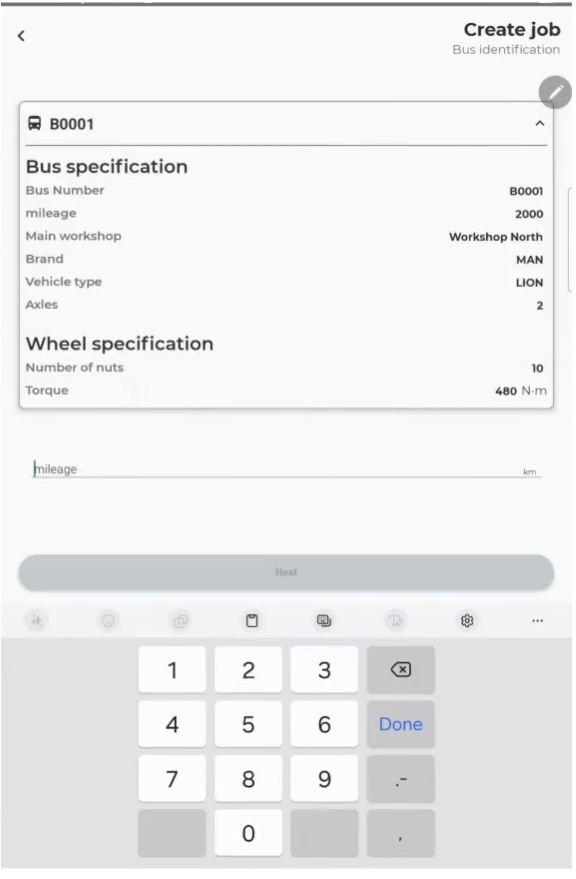
Enter the mileage and click on Next to continue
Select the the wheel that tightening will be done on
- When a wheel is selected, it will be highlighted in red
Choose between Tightening, Torque Check, or Loosening :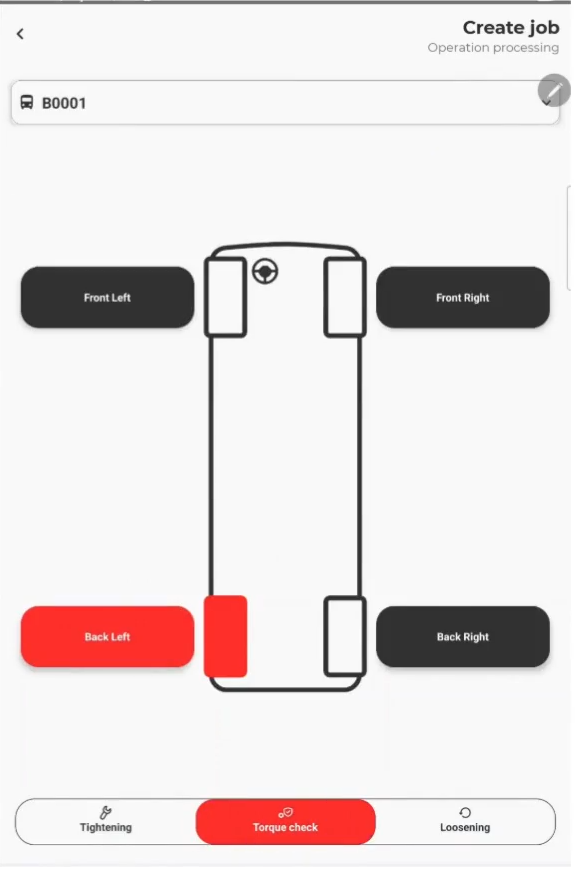
A Scan of the available tools will be done make sure that the tool is less than 10 meters away from the portable device where the CPLinQ PRO HTB application is istalled.
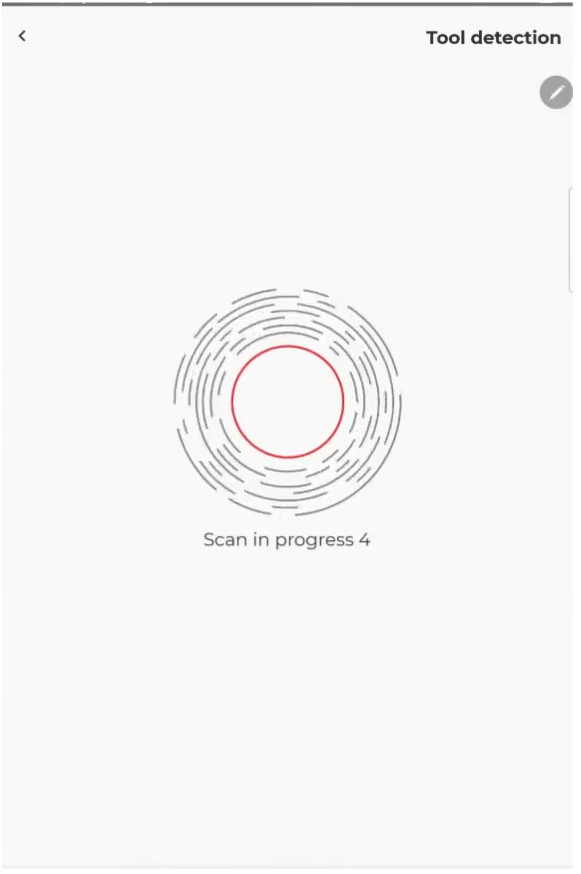 | 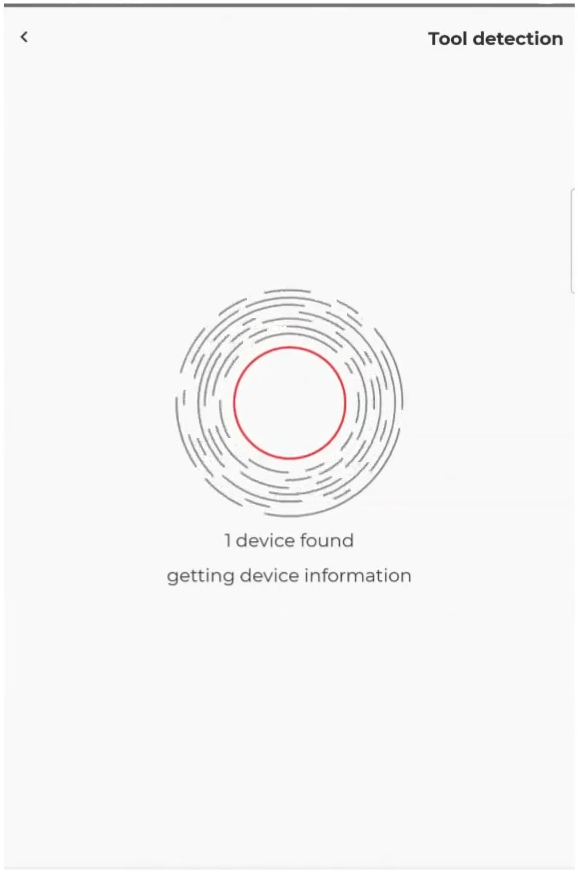 |
When the scan is completed, the options of the available tools will show up :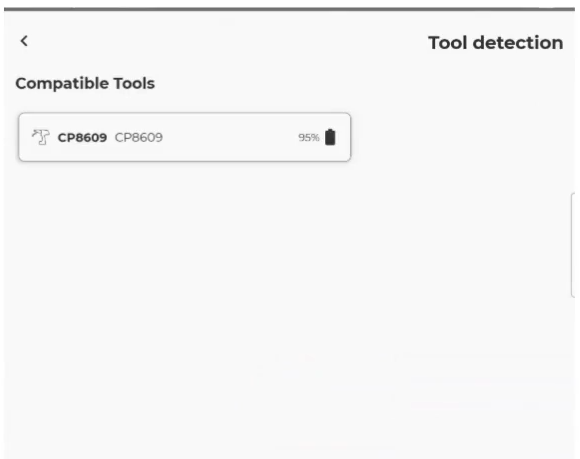
Information of the job will show up
- Number of bolts
- Torque power
Click on start job if the information is correct:
Please note : If the information is not correct let you unit manager so that the modification can be applied to the vehicle.
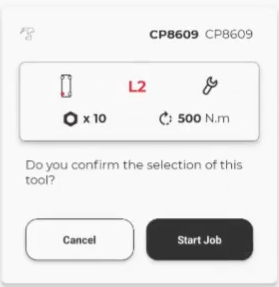
Select your tool, you will hear a loud beep sound coming from the tool, this means that connection is established.
Observe your tool and wait until the information regarding the torque is available
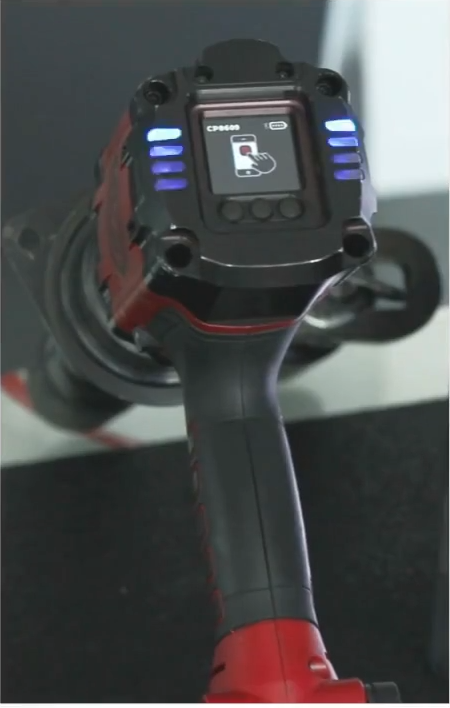 | 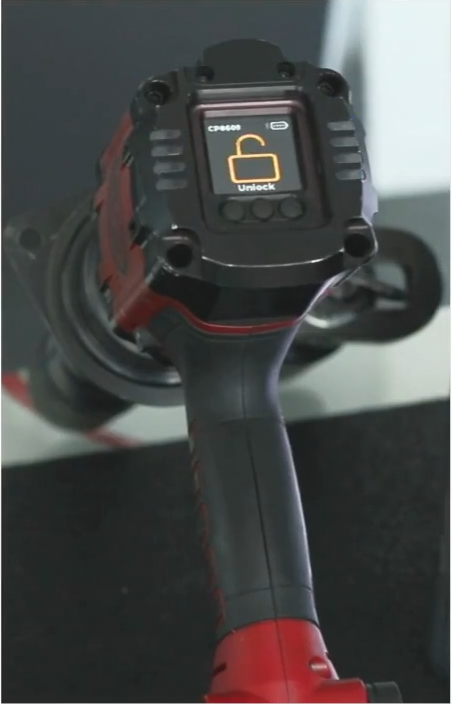 | 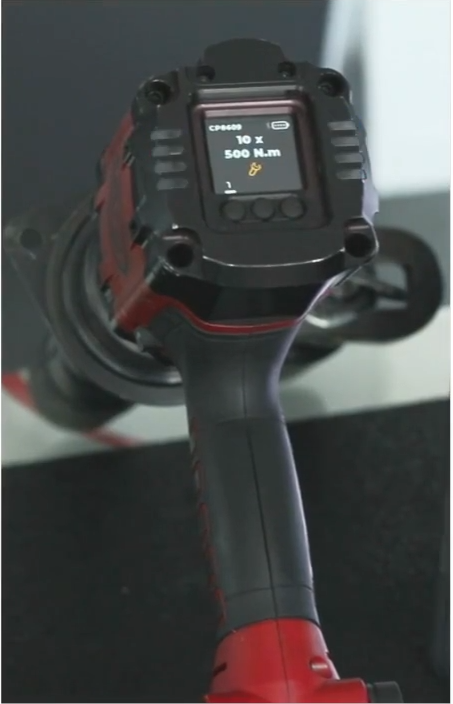 |
The tool is now connected, you can now start the maintenance job.
Further readings
To Complete a job : Start a Maintenance job
To connect to the CPLinQ PRO HTB application : First connection to CPLinQ PRO HTB application