
Adding a user on CPLinQ Pro HTB
This Article Applies From:
CPlinq Pro |

Introduction
This article is to help you add a user to CPLinq PRO HTB workshop.
1 Pre-requisites
To be able to add a user, an access to the Web interface on CPlinQ Pro HTB as a Unit Manager is necessary.
1.1 - Suggested readings before diving-in
2 Access to the user creation interface
Once you are connected as a Unit Manager, you can proceed to the creation of the new user.
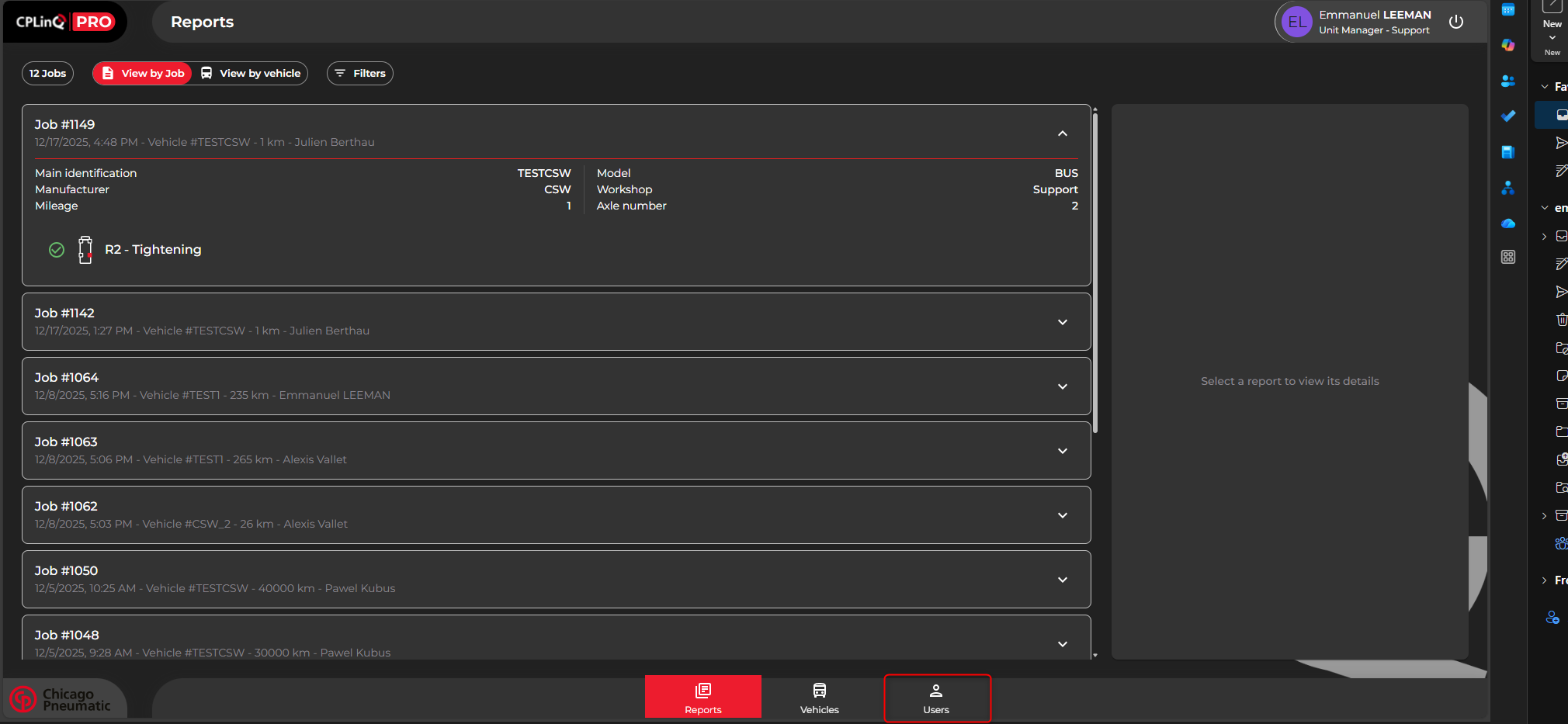
Start by clicking ont the "User" tab on the bottom right of the page :
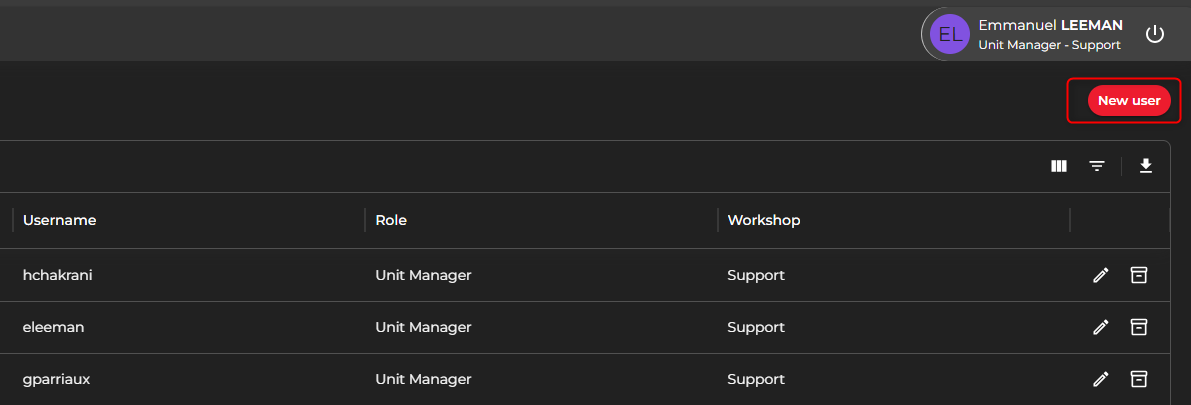
Proceed to clicking on "New user" on the top right corner of the page.
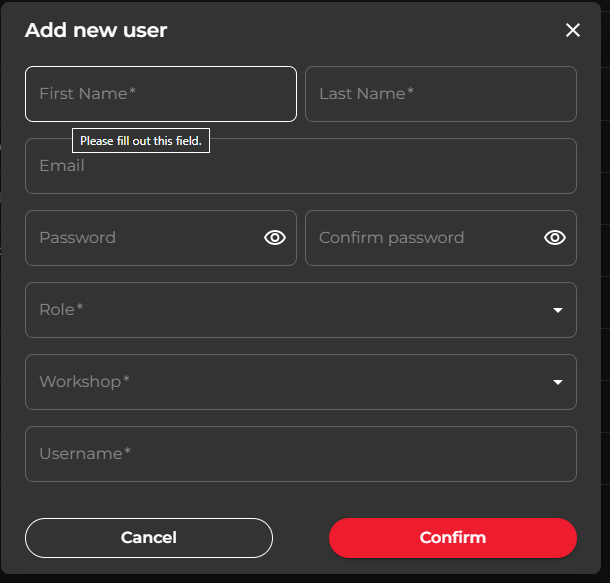
- A small window will appear
- Enter the first and last name of the user
- Add an email address, If the user does not have an email address, you can leave it blank
- Enter and confirm the password (Minimum of 8 characters containing at least one upper case letter, one lower case letter, one number, and one special character)
- Select a role for the user
- Select the concerned Workshop
The username will automatically be the first letter of the first name an the last name
i.e :
First name : John
Last name : Doe
Username : jdoe
You can leave the default username or modify it if needed.
2.1 User Role
The User Role will depend on the rights that will be needed for the accomplishment of the daily tasks.
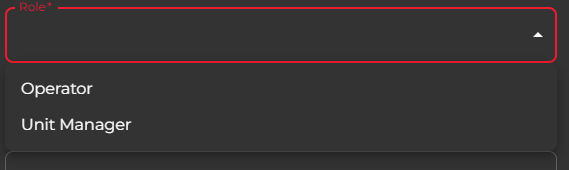
Operator :
An operator will only have the right to use the CplinQ Pro application and complete jobs
Unit Manager :
A Unit Manager will have an administrator access on the workshop:
| Unit Manager | Operator | |
| Create New Jobs | ✅ | ❌ |
| Create New vehicles | ✅ | ❌ |
| Create New Users | ✅ | ❌ |
| Access to CPLinQ HTB | ✅ | ❌ |
| Complete tightening, untightening, and control jobs on wheels | ✅ | ✅ |
Modification of the role can be done at anytime if needed.
2.2 Modifying an existing user
To modify the name, email address, password, role, username, or workshop if needed you can simply click on the user that needs to be modified. The User information window will pop up and you can modify as needed.