
Start a Maintenance job
This Article Applies From:
CPLinq Pro |

Introduction
This article is a guide the operators to start maintenance job on the CPLinQ PRO HTB application.
Make sure that you are connected to the tool before continuing with this How To article :
Pre-requisites
To be able to start, you will need a mobile device with CPlinQ PRO installed, a wifi connection, and a tool such as the CP86 or CP8609, and of course an account created by you Unit Manager.
To learn how to connect to the CPlinQ PRO HTB application, please view this article :
Starting a maintenance job:
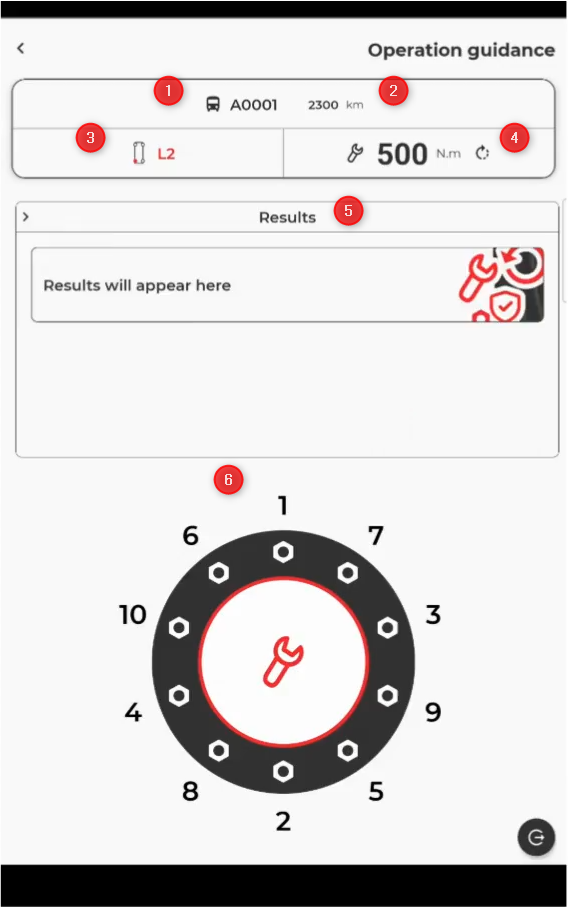
When the tool is connected to the application and after selecting the type of job and the wheel that need to be worked on, you will have the operation guidance page, depending on the job (Tightening loosening, or torque check) there will be a specific order that will need to be followed. Pease view the screen shot below with the job information.
- Identification of the Vehicle
- Mileage
- Current selected wheel , in this case it is L2 back left wheel ▬ L1 would be the front left wheel.
- Torque
- Results of the operation
- Order of the bolts that needs to be followed
As the operation is underway, you will have the indicator of the number of completed bolts and the rsults will show is the operation goes on :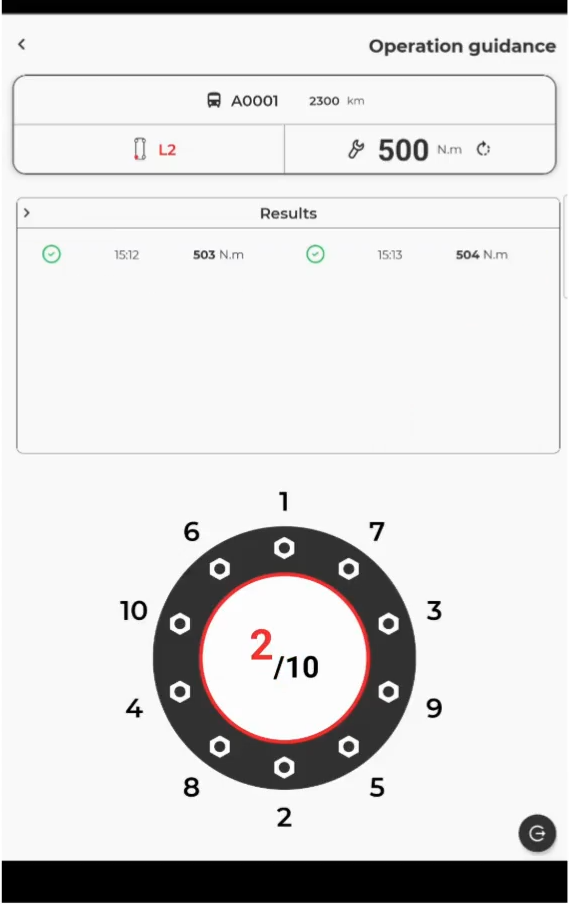
When the job is completed you have the option of completing the job by clicking on the bottom right corner of the portable device which is highlighted in green
You also have the option to continue, the application will continue to count and monitor the tightening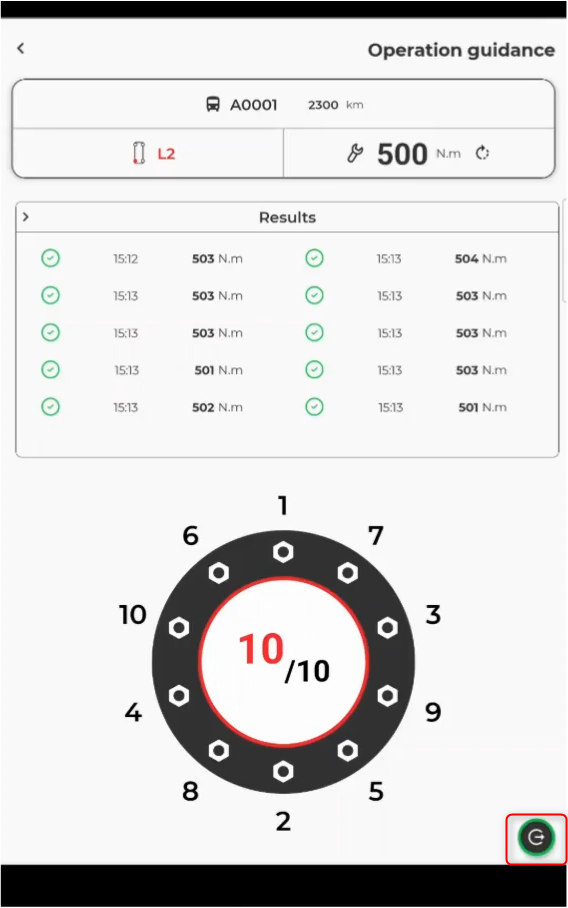
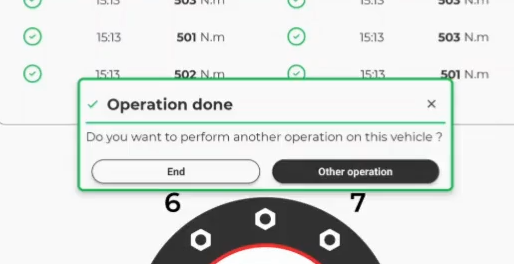
When confirming the end operation you can :
- End the operations on the vehicle
- Start an other operation
Further readings
To Connect to the tool : Connecting to the tool
First connection to the Application : First connection to CPLinQ PRO HTB application